Domains
A domain is a hostname Door can route. The page title is Domains. The subtitle is Manage your domains.
An endpoint can only use a domain that is already in this list. The domain is also how the endpoint finds its gateway and its environment.
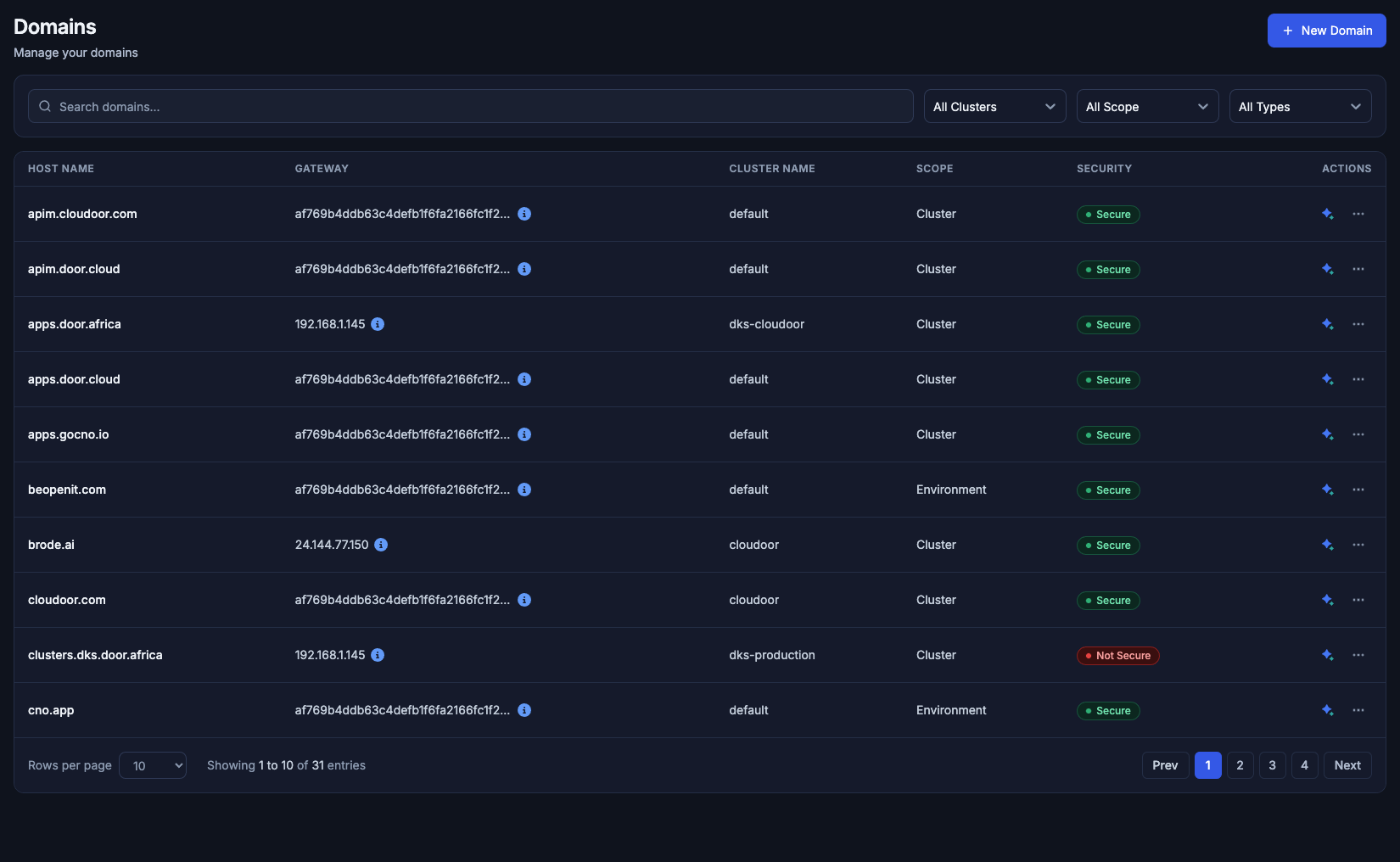
31 domains in the default organization. Scope is Cluster or Environment. Security is Secure or Not Secure. The info icon on the gateway address is the DNS hint.
The list
Search is Search domains.... A search with no hit says No domains match your search.
The filters are All Clusters, All Scope (Cluster, Environment), and All Types (Secure, Not Secure).
| Column | What it shows |
|---|---|
| Host name | The hostname, including a wildcard host when one is registered |
| Gateway | The gateway address, truncated. The info button is Gateway DNS information |
| Cluster name | The cluster the domain is placed on |
| Scope | Cluster or Environment |
| Security | Secure or Not Secure |
| Actions | Analyze with Maya: {host}, then Edit and Delete |
The footer is Rows per page and Showing 1 to 10 of 31 entries, with Prev and Next.
DNS
Hover or focus Gateway DNS information. The popover says: Please use this address to add an A record to your DNS manager. It prints the address and Click to copy. After a copy, the label becomes Copied.
Create that A record at the DNS provider that owns the hostname. Until the record exists, the endpoint can be Ready in the console and still be unreachable under that name.
| At your DNS provider | Value |
|---|---|
| Record type | A |
| Name | The host you registered, such as shop.example.com, or the subdomain you will type on the endpoint |
| Value | The gateway address from Gateway DNS information. Click to copy |
Scope decides who else can use the host. Environment pins the endpoint to one project and one environment, so the endpoint form does not ask again. Cluster makes the host available across that cluster, and the endpoint form then asks for the environment, with the hint This domain serves a whole cluster — pick where the endpoint runs.
A wildcard host in the list is still a domain row. Endpoints pick it the same way they pick any other host.
New Domain
New Domain leaves the list and opens a full page, Connect New Domain. The subtitle is Connect your domain to your organization. Cancel returns to the list. If the organization has reached its domain limit, New Domain is replaced by the plan message instead of opening this page.
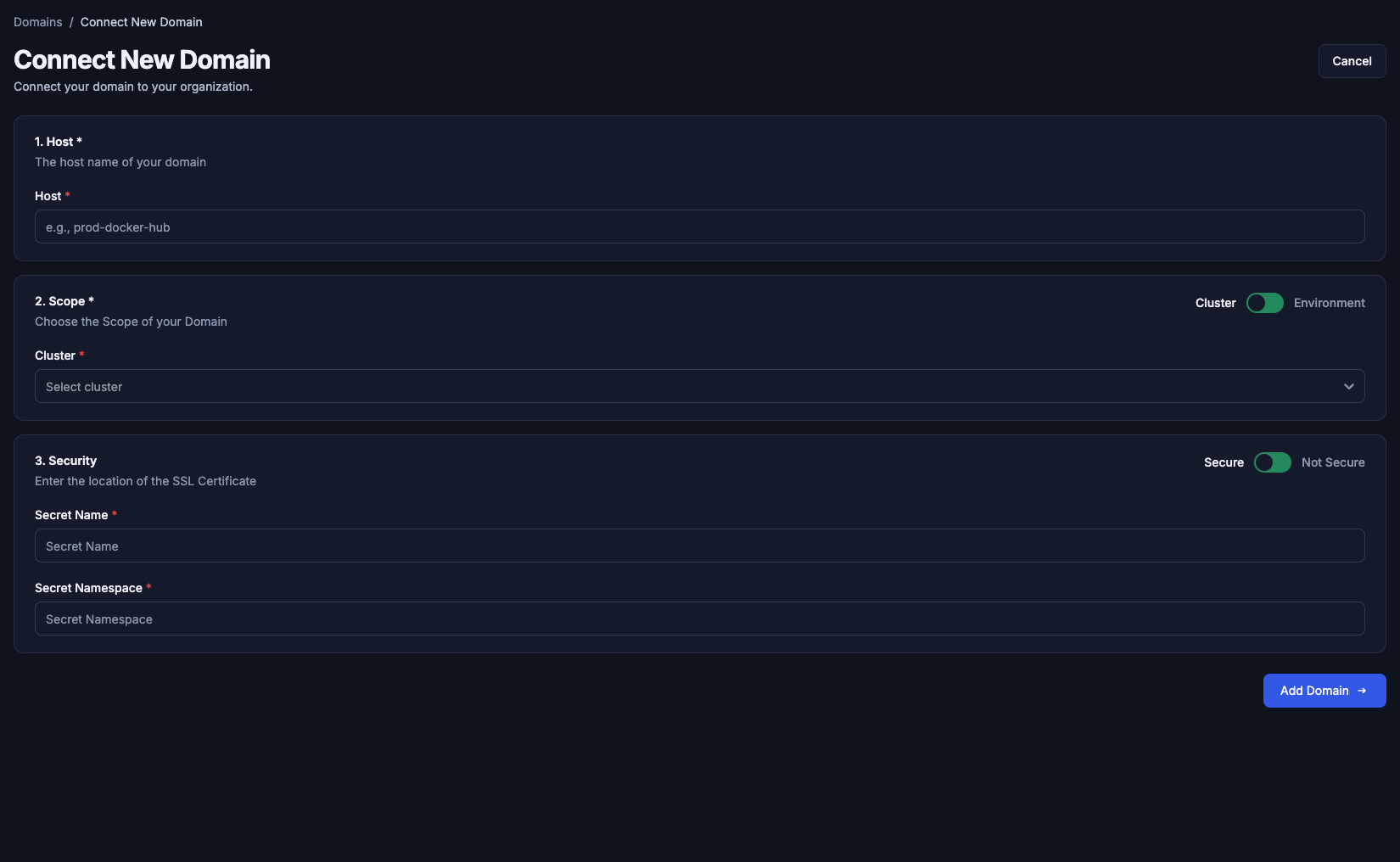
The page opens on cluster scope and Secure. Add Domain creates it.
1. Host
Host is subtitled The host name of your domain. The field Host is required. The placeholder is e.g., prod-docker-hub. Use the hostname callers will type, such as api.example.com. An empty host says Host is required.
2. Scope
Scope is subtitled Choose the Scope of your Domain. The switch is Cluster or Environment.
Cluster asks for Cluster, required, placeholder Select cluster. The hostname is attached to that cluster. An empty cluster says Select a cluster.
Environment asks for Project (placeholder Select project) and Environment Name (placeholder Select environment). The environment list waits until a project is selected. Door stores the cluster of the environment you pick. An empty project says Project is required for environment scope. An empty environment says Environment is required for environment scope. Leaving both empty says Select a project and environment.
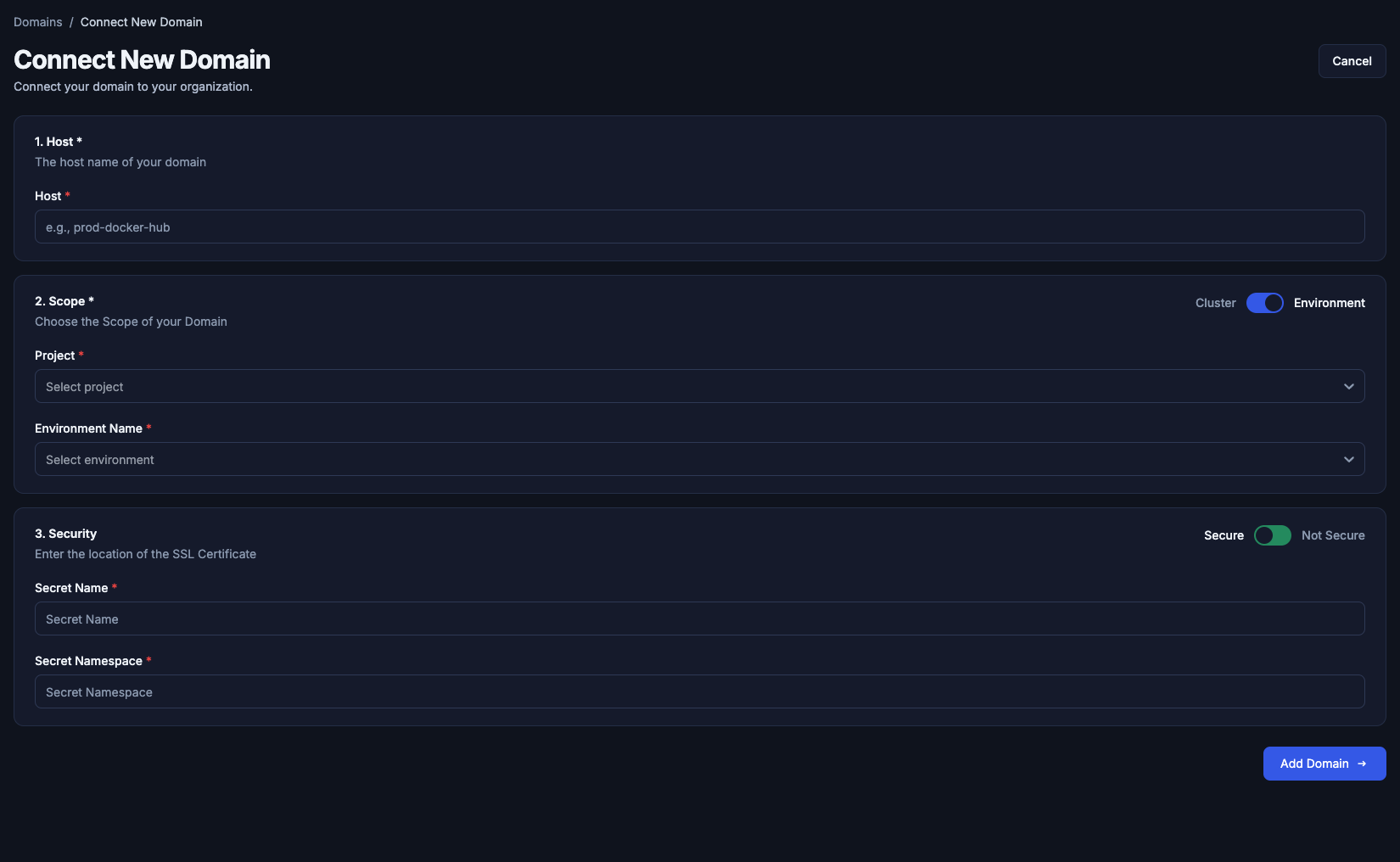
Environment replaces the cluster picker with Project and Environment Name. Security is unchanged.
3. Security
Security is subtitled Enter the location of the SSL Certificate. The switch is Secure or Not Secure.
Secure asks where the certificate already lives in the cluster:
| Field | Placeholder |
|---|---|
| Secret Name | Secret Name |
| Secret Namespace | Secret Namespace |
Both are required while Secure is selected. Leaving them empty says Secret name and namespace are required when the domain is secure. Not Secure hides those two fields. A domain saved that way shows Not Secure in the list, as clusters.dks.door.africa does in the picture above.
The button is Add Domain.
Edit
Edit in the row menu opens the same page, titled Edit Domain. The subtitle is Update domain settings for your organization. Host and Scope stay as they were. Security stays editable: Secure or Not Secure, and the secret name and namespace. While the page loads it says Loading domain. The button is Save Changes.
Delete
Delete opens Delete domain. The body is: Are you sure you want to delete {host}? This action cannot be undone. Cancel closes it. Delete removes the domain. While it runs, the button reads Deleting….
An endpoint that still names this host needs another domain on its route, or the public URL for that endpoint goes away with the domain.