Pipelines
Pipelines in the sidebar opens Builds at /pipelines, the runs for codes in this organization.
Do this
-
Open Pipelines. The page title is Builds. The line under it is Recent Builds for Codes in this organization.
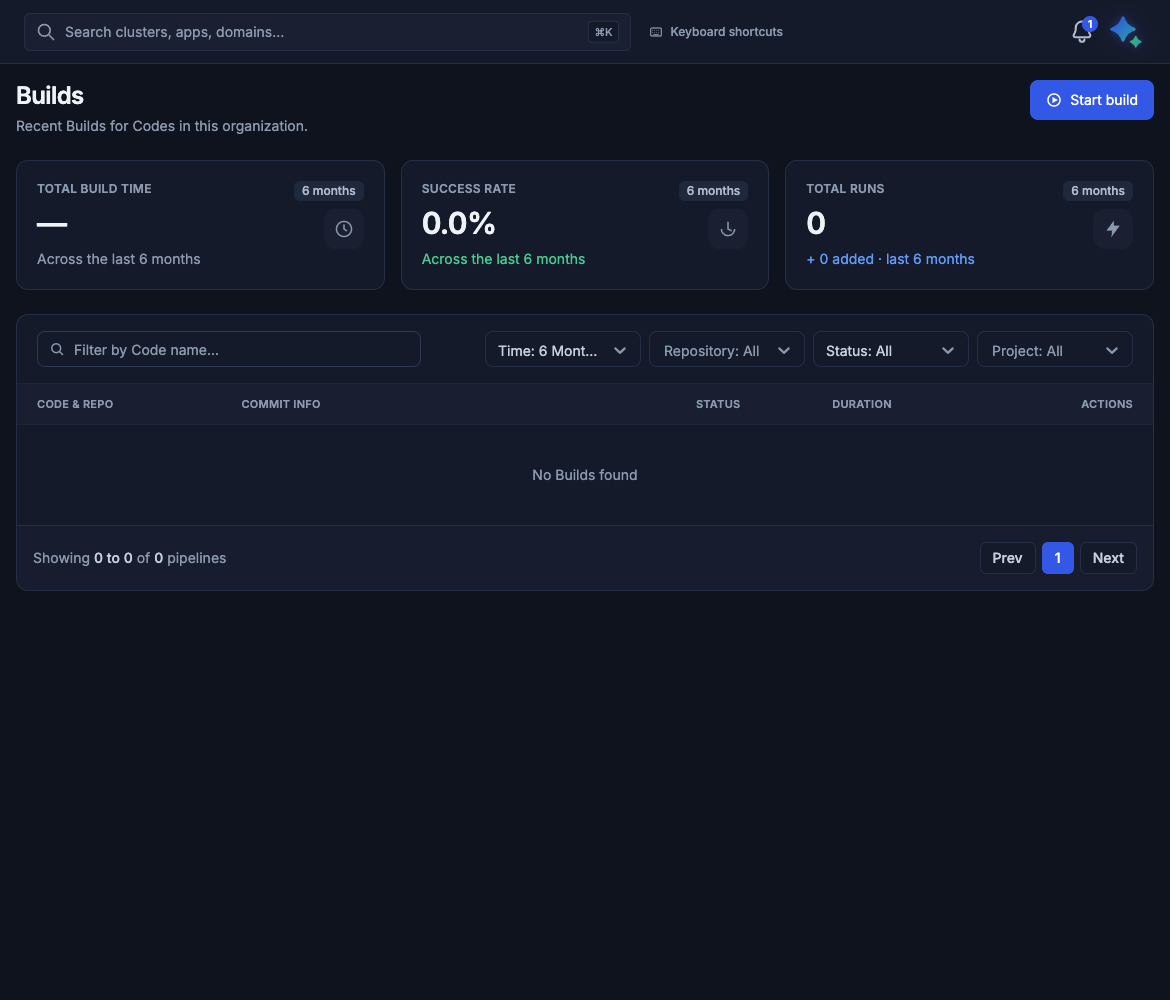
Builds in the demo organization, with no runs yet. The three cards cover the last 6 months. Your page lists your own runs.
-
Click Start build.
- Under Code, select the repository. Door fills Branch, Version, and Configuration. The line under Code says We auto-select main, a version tag from the branch, and the first configuration. For a code you created with Add Code, that configuration is named dev.
-
Click Start build in the dialog. Leave Edit closed unless you want a different branch, version, or configuration.
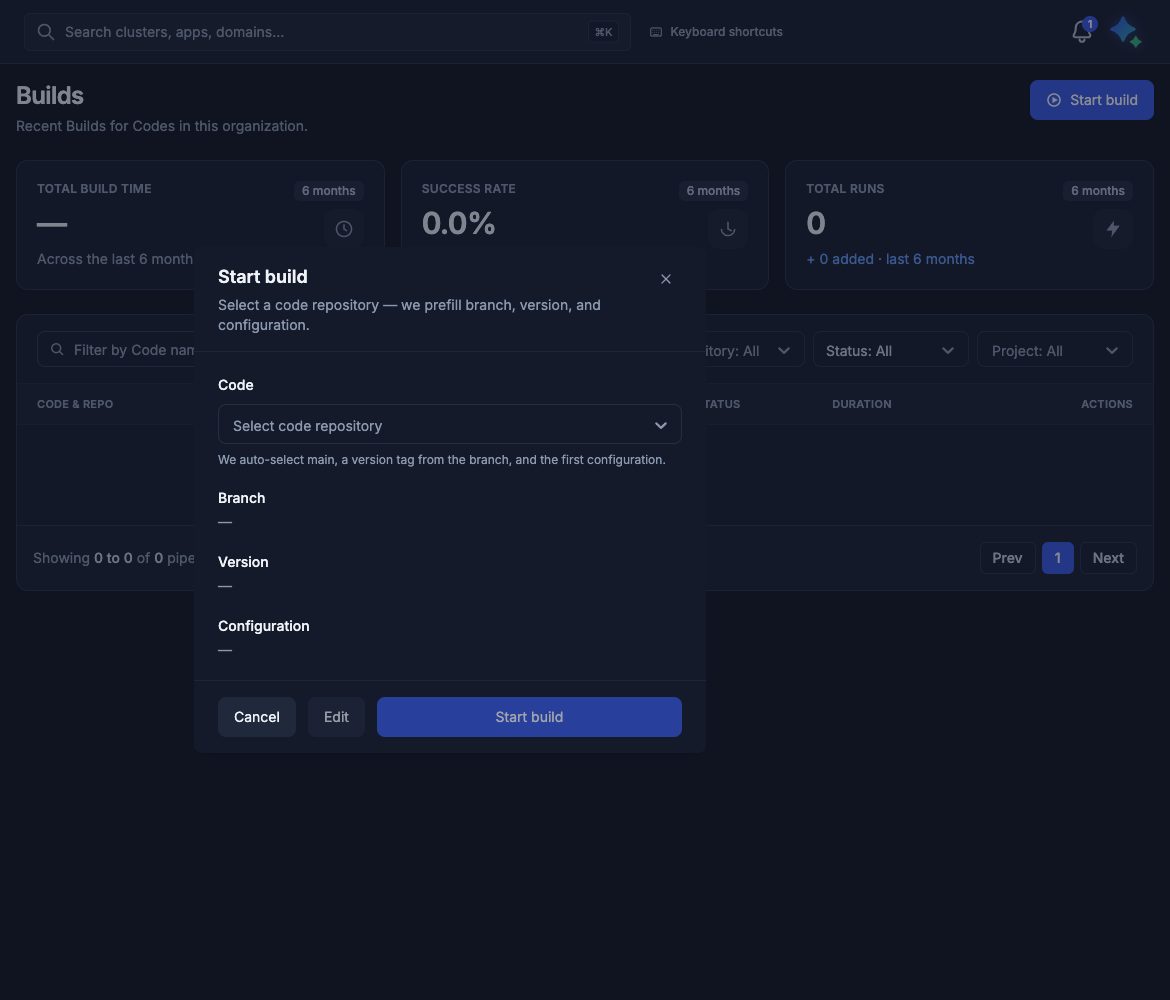
Start build with no code selected. Branch, Version, and Configuration stay empty until you pick a code. Edit is disabled. Start build in the dialog launches the run.
-
Open the row when the run appears. The stages are Git checkout, Image build, Image scan, Image push, and Deploy. Dockerfile generation is added when Cloudoor generated the file. The demo list is empty, so those labels are the ones on the page when a run exists. See Open a build.
Connect Git and add code creates the pipeline. Start build on this page runs it again. The same later run can also start from the code page: Build on a commit opens Manual Build, and Build Now starts it. See After the code exists.
When a stage fails
Open the row. Pipeline Stages shows how far the run got. Read the log of the first stage that failed, then use the matching fix.
| Stage that failed | Look for | Then |
|---|---|---|
| Git checkout | clone failed | The provider connection or the branch on Connect Git and add code |
| Dockerfile generation | stack could not be detected | Add a Dockerfile. Detection did not recognize the project |
| Image build | dockerfile is required for build and was not found, or failed to build the image | Fix the path or the Dockerfile, then Rerun |
| Image scan | The scan failed | The scan is required for this build. Fix the image and Rerun |
| Image push | failed to push the image | A Super Admin checks the registry. A developer does not reconnect it to retry a build |
| Deploy | The card says Once security scan passes, you can deploy this build to an environment. | The image is in the registry. Deploy it from Applications, or turn on Auto Deployment if every later build should roll out |
Cancel stops a run that is still going. Rerun starts that build again. Download logs and Copy logs to clipboard are on the log panel.
A run that reaches Ready has succeeded. The application that is already running stays on its current version until you upgrade it. See A green build and an application that did not change.
Open a build
The demo organization has no run, and this guide has no screenshot of one. Open a row on Builds and the address is /pipelines/ followed by the run id. These are the labels on that page when a run exists.
The breadcrumb is Pipelines. The run shows Cancel Build, Rerun, and Duration.
Pipeline Stages lists the stages, with Overall progress for the run:
| Stage | What it is |
|---|---|
| Git checkout | Clones the commit. |
| Dockerfile generation | Present when Cloudoor generated the Dockerfile. The banner says Cloudoor generated a Dockerfile for this build. The badge is Generated by Cloudoor. |
| Image build | Builds the image. |
| Image scan | Scans the image. |
| Image push | Pushes the image to the registry. See Environments and registry. |
| Deploy | The next-step card. It says Once security scan passes, you can deploy this build to an environment. |
On the log: Download logs, Copy logs to clipboard, and Collapse terminal / Expand terminal.
On the Builds list, the row actions are Cancel and Rerun. Cancel applies while the run is still going. Rerun starts it again.
Everything on this screen
Builds
| On the page | What you see |
|---|---|
| Title | Builds |
| Subtitle | Recent Builds for Codes in this organization. |
| Start build | Opens the dialog in the next table. |
| TOTAL BUILD TIME | Time spent building. The card says Across the last 6 months. With no runs it shows a dash. |
| SUCCESS RATE | Share of runs that succeeded in that window. The card says Across the last 6 months. |
| TOTAL RUNS | How many runs are in that window. With no runs the card says + 0 added · last 6 months. |
| Window | last 6 months. Each card carries a 6 months badge. |
| Filter by Code name | Narrows the table to one code. |
| Time | Defaults to 6 Months. |
| Repository | Defaults to All. |
| Status | Defaults to All. |
| Project | Defaults to All. |
| CODE & REPO | The code and the repository that was built. |
| COMMIT INFO | The commit on the branch that was built. |
| STATUS | Whether the run succeeded, failed, or is still going. |
| DURATION | How long the run took. |
| ACTIONS | Cancel and Rerun. |
| Empty table | No Builds found |
| Footer | Showing 0 to 0 of 0 pipelines, with Prev and Next. |
Start build
The dialog title is Start build. The line under it is Select a code repository — we prefill branch, version, and configuration.
| Field or button | What it does |
|---|---|
| Code | The repository to build. The placeholder is Select code repository. |
| Helper | We auto-select main, a version tag from the branch, and the first configuration. |
| Branch | Filled from the code. main when that branch exists. |
| Version | A version tag from the branch. |
| Configuration | The first configuration on the code. After Add Code, that name is dev. |
| Cancel | Closes the dialog. No run starts. |
| Edit | Changes branch, version, or configuration. Disabled until a code is selected. You can start the build with Edit left closed. |
| Start build | Starts the run with the values on the dialog. |
When the log names the failure
| What the log says | What to do |
|---|---|
clone failed | The repository or branch could not be cloned. Check the provider and the branch on Connect Git and add code. |
dockerfile is required for build and was not found at … | Add a Dockerfile at that path, or follow Dockerfile and the build. |
stack could not be detected: no Dockerfile found and the project type is not recognized — add a Dockerfile or set one in the build configuration | Add a Dockerfile, or set one in the build configuration. |
| The generated Dockerfile failed the safety lint | Replace the generated file with your own Dockerfile. See Dockerfile and the build. |
failed to build the image | Read the log above that line. |
failed to push the image | Check the registry under Environments and registry. |
| The scan failed | The scan is required for this build and it did not pass. Fix the image and Rerun. |
What this does not do
- It does not create a pipeline. Add Code creates the pipeline and the dev configuration. There is no separate create-pipeline wizard. Start build runs the pipeline again.
- A green build leaves an application that is already installed on the version it is running. Three cases still deploy: the first Build & Deploy when you selected an environment (that deploy waits until the build succeeds), a later deploy or upgrade from Applications or from the Deploy card on the run, and Auto Deployment on that application.
- It does not promote an application from a dev environment to a production environment. Production is a separate deploy into a production environment. See Environments and registry.