Environments and registry
Door DevOps deploys into an environment that already exists. Creating the project, the cluster, and the environment is Door Hub: one environment is one namespace on one cluster. A Project Owner or a Super Admin creates it. A developer selects it on Add Code and on New Deployment.
The registry is separate, and it is for a Super Admin. Door stores the built image there. When the organization has one registry, Add Code fills the image URL from it and hides the picker. A developer does not open Registry to deploy.
If you are deploying
Stop on this page after the paragraph above. Select the environment on Add Code or on New Deployment. The image URL is filled from the registry the Super Admin already connected. In the demo organization that prefix is harbor.tooling.door.africa/demo/, followed by the code name.
Open Registry only when you are the Super Admin connecting the first registry, rotating a credential, or adding another one.
Registry, for a Super Admin
Registry is where Door stores the image. The page says Manage your image registries. The page is /dks/registry.
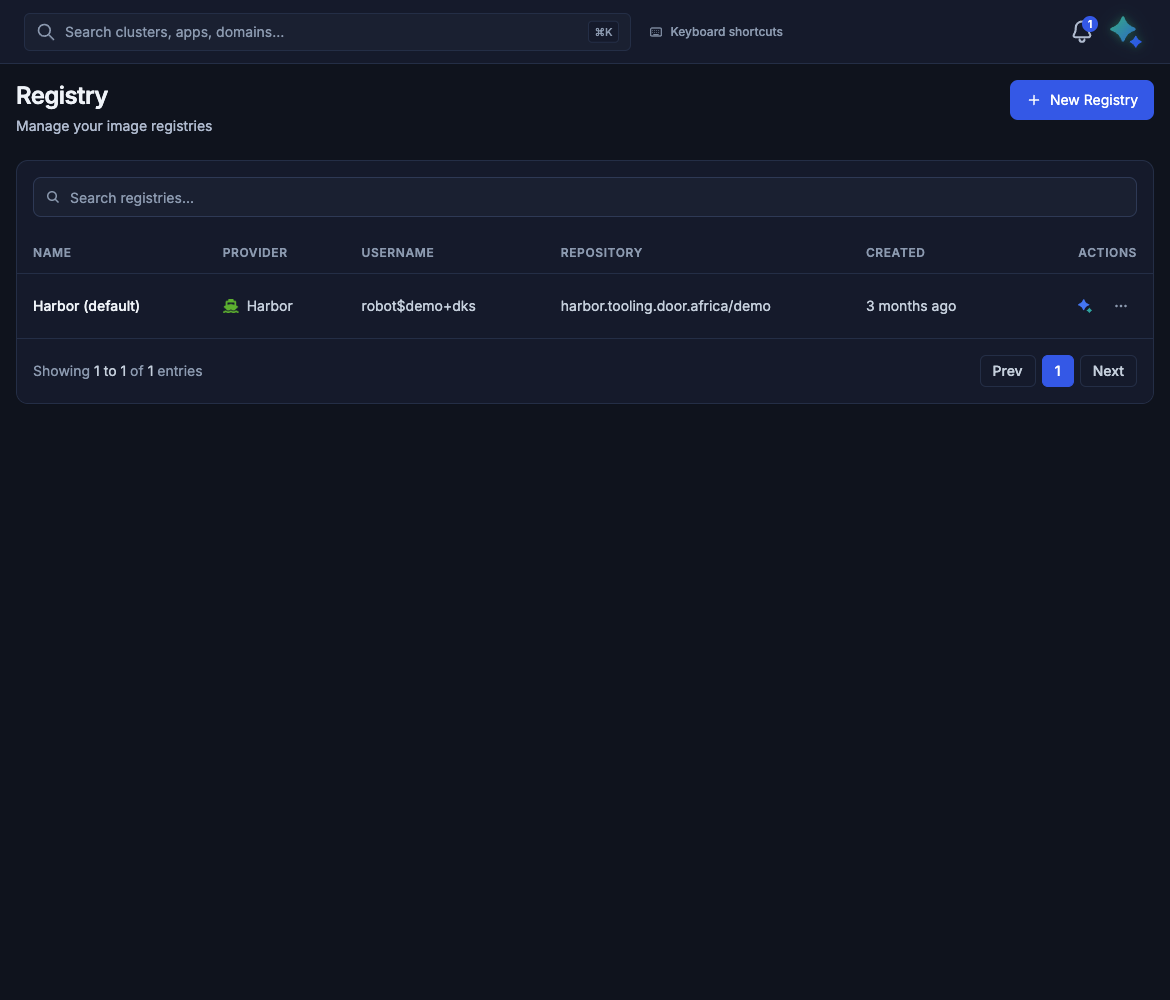
The name is Harbor (default). The repository is harbor.tooling.door.africa/demo.
| Column | Meaning |
|---|---|
| NAME | The registry name. The demo row is Harbor (default). |
| PROVIDER | The provider. The demo row is Harbor. |
| USERNAME | The account used with that registry. |
| REPOSITORY | The repository path. The demo row is harbor.tooling.door.africa/demo. |
| CREATED | When it was added. The demo row says 3 months ago. |
| ACTIONS | Edit opens Edit Registry. Delete asks you to confirm Delete registry? |
Search the list from this page. New Registry opens the connect form.
On Add Code, the image URL is this repository plus the code name.
Connect New Registry
The list button is New Registry. The page title is Connect New Registry. The page is /dks/registry/new.
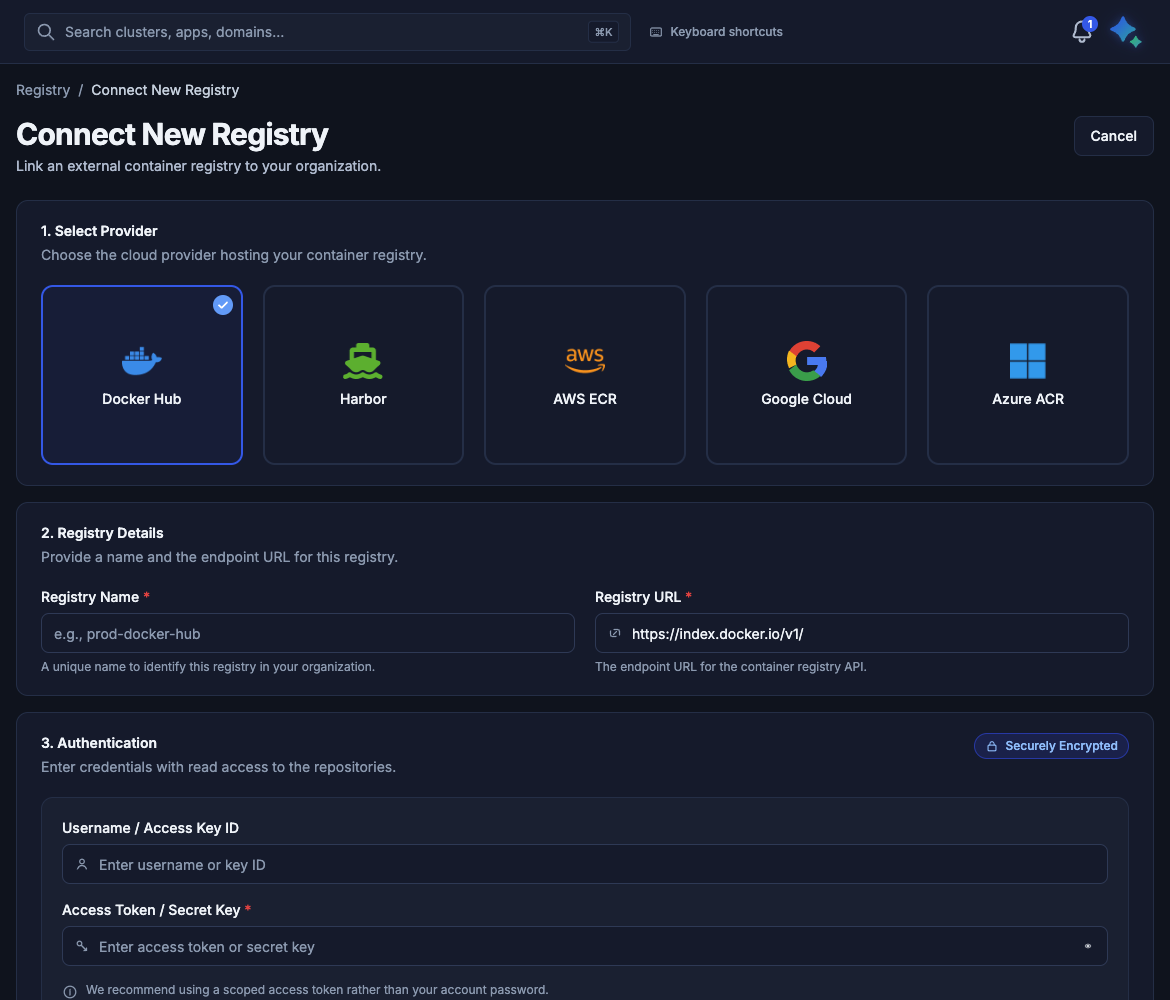
Docker Hub is selected, so Registry URL is https://index.docker.io/v1/. Authentication shows the badge Securely Encrypted.
| Step | What you set |
|---|---|
| 1. Select Provider | Docker Hub, Harbor, AWS ECR, Google Cloud, or Azure ACR. |
| 2. Registry Details | Registry Name and Registry URL. Docker Hub fills https://index.docker.io/v1/. |
| 3. Authentication | Username / Access Key ID and Access Token / Secret Key. The form says: We recommend using a scoped access token rather than your account password. The badge is Securely Encrypted. |
| When the provider asks | Registry Region, Access Key, Secret Key, or Upload File. Registry Region appears for the cloud providers that need it, such as AWS ECR. |
Connect Registry saves the registry. Cancel returns to the list. This walkthrough stops on the form.
Edit Registry
Edit on the row opens Edit Registry. Save changes writes the form. Delete asks you to confirm Delete registry? The same credential fields appear when that provider asks for them. Registry Region appears for the cloud providers that need it, such as AWS ECR.
What this does not do
- Create the cluster, the project, or the environment. That is Door Hub. A Door-managed cluster is Getting started.
- Connect Git or run the build. That is Connect Git and add code.
- Deploy the application. That is Applications.