Dockerfile and the build
Door builds the image with the Dockerfile you point at. You have three choices.
| The repository | What you set |
|---|---|
A file named Dockerfile at the root | Leave Docker File Path at /Dockerfile |
| The Dockerfile in a subdirectory | Set Docker File Path to that file, for example /services/api/Dockerfile |
| No Dockerfile | Leave the path. The form says No Dockerfile? Cloudoor generates one automatically during the build. You do not check a box |
The field starts at /Dockerfile. The form keeps a path in that field. The hint is Provide the location of your repository's Dockerfile if it is not in your root folder.
Put the Dockerfile at the root
Leave Docker File Path at /Dockerfile. Door looks for a file named Dockerfile at the root of the repository. This is the default.
Point at another path
If the Dockerfile lives in a subdirectory, set Docker File Path to that file. Examples: /services/api/Dockerfile, /deploy/Dockerfile. The field already contains /Dockerfile. Replace that value with the path in the repository.
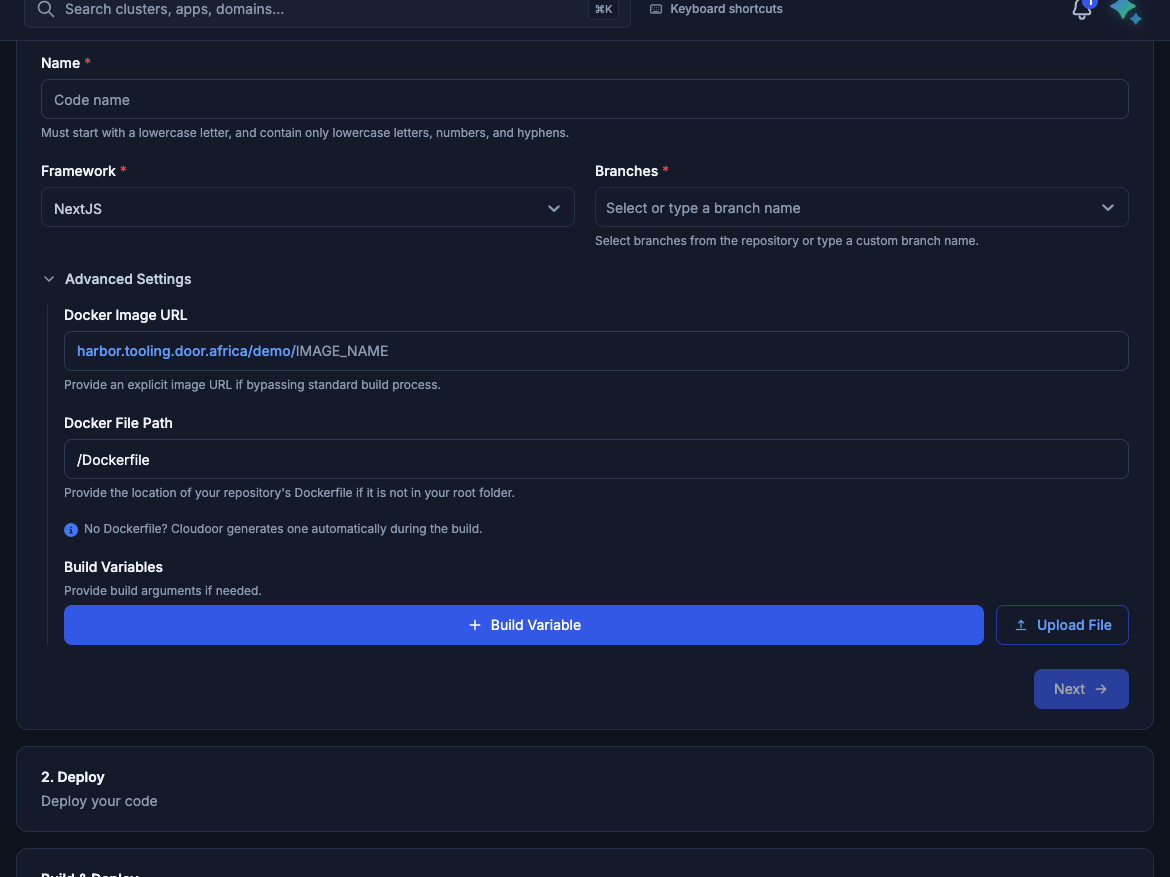
Advanced Settings on Add Code. The image URL is filled from the code name. The Dockerfile path stays /Dockerfile until you change it.
Let Cloudoor generate one
The form says: No Dockerfile? Cloudoor generates one automatically during the build.
That happens when the file at Docker File Path is missing and Dockerfile generation is available for your organization. You do not check a box. Door detects the project from the files in the repository. The framework you picked can steer that detection.
When a build used a generated file, the run says Cloudoor generated a Dockerfile for this build and shows Generated by Cloudoor.
Generation covers the usual application stacks: Next.js, Node, React, Vite, Angular, Vue, Go, Python (Django, Flask, FastAPI), Java (Maven or Gradle), PHP and Laravel, Ruby on Rails, .NET, Rust, and a static index.html.
If generation is not available and the file is missing, the build stops. The log says:
The path in the message is the path you set. Add a Dockerfile, or ask for generation to be enabled for the organization, and start the build again.
If generation runs but the project type is not recognized, the log says:
stack could not be detected: no Dockerfile found and the project type is not recognized — add a Dockerfile or set one in the build configuration
Add a Dockerfile in that case. A generated file that fails the safety check also fails the build. The log says the generated Dockerfile failed the safety lint. Replace it with your own Dockerfile.
Build variables
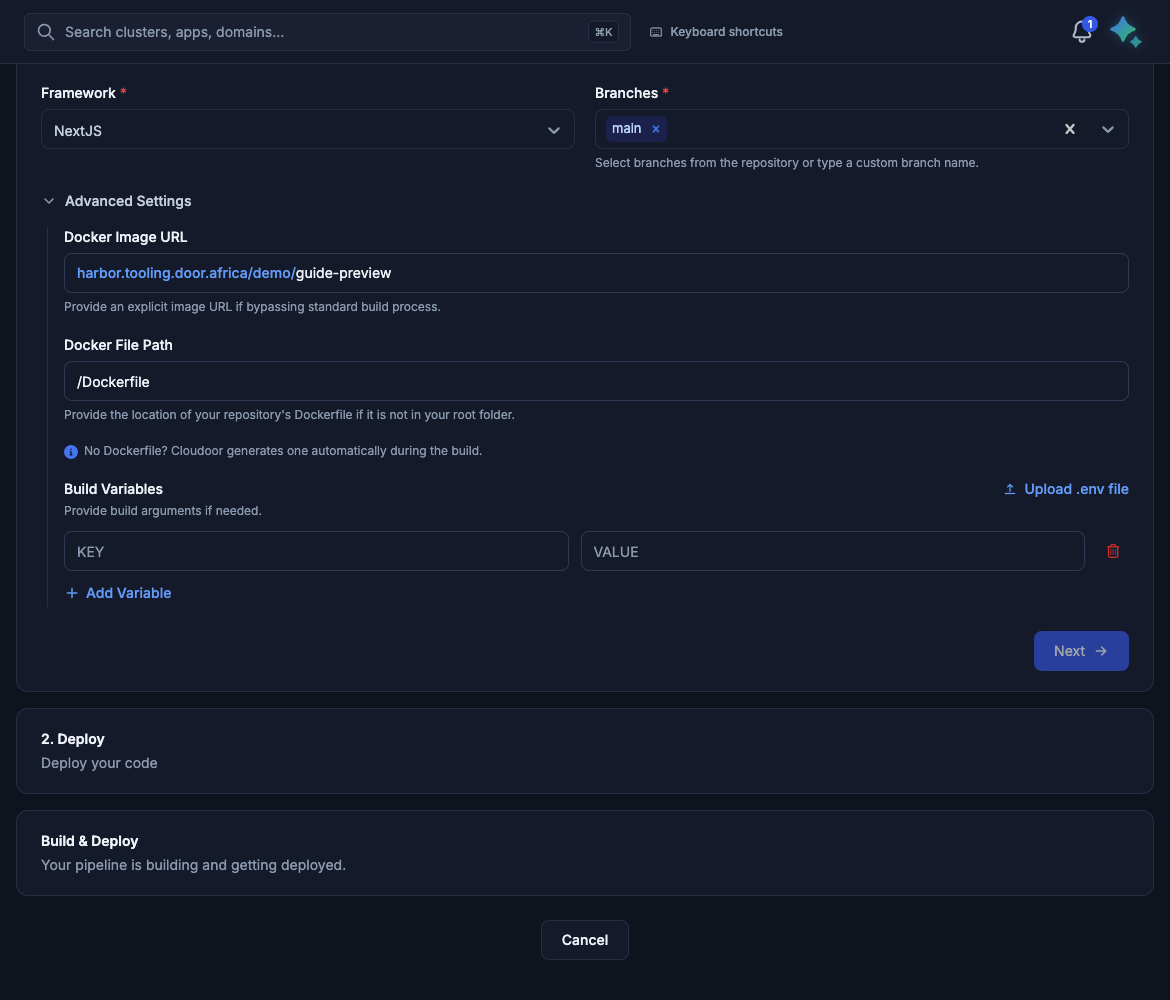
Build Variables become build arguments. Each row is a KEY and a VALUE. They are passed into docker build and are available as environment variables after every FROM.
Use them for values the image needs at build time, such as a public base URL. Do not put a production secret here. Runtime secrets belong in Environment Variables on the application.
What the build does
The build clones the branch, uses or generates the Dockerfile, builds the image, and pushes it to your registry. The configuration created by Add Code is named dev. The pushed tag includes a timestamp and the suffix dev.
The build does not choose a target stage, and it does not pull a cache image you configure. Set those in the Dockerfile itself.
A finished build updates a running application only in two cases:
- It is the first build from Build & Deploy, and you selected an environment.
- Auto Deployment is on for that application. See Applications.
Otherwise, deploy the new image yourself from Apps.